
Virtual Camera Settings
With the VCam virtual camera, you can choose VCam as the camera in video conferencing apps such as Zoom and Google Meet.
Setting Up the Virtual Camera
Section titled “Setting Up the Virtual Camera”In the “Virtual Camera” tab of the VCam settings, you can check its status and install or uninstall the virtual camera.
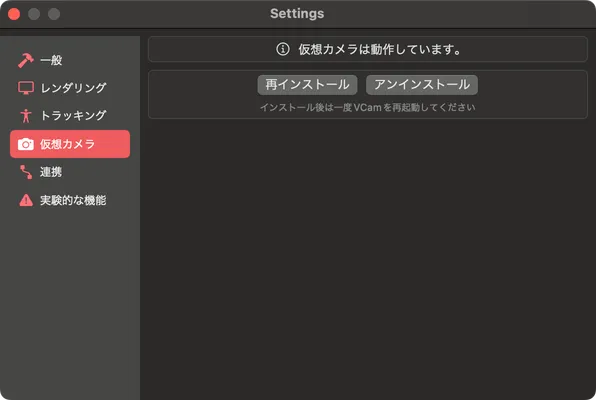
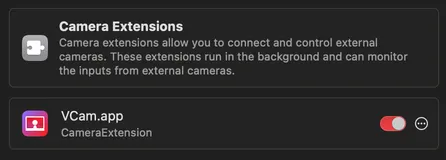
After installing it, choose System Settings > General > Login Items & Extensions on your Mac, click the Info button (i) for Camera Extensions, then turn on CameraExtension for VCam.app.
Using the Virtual Camera
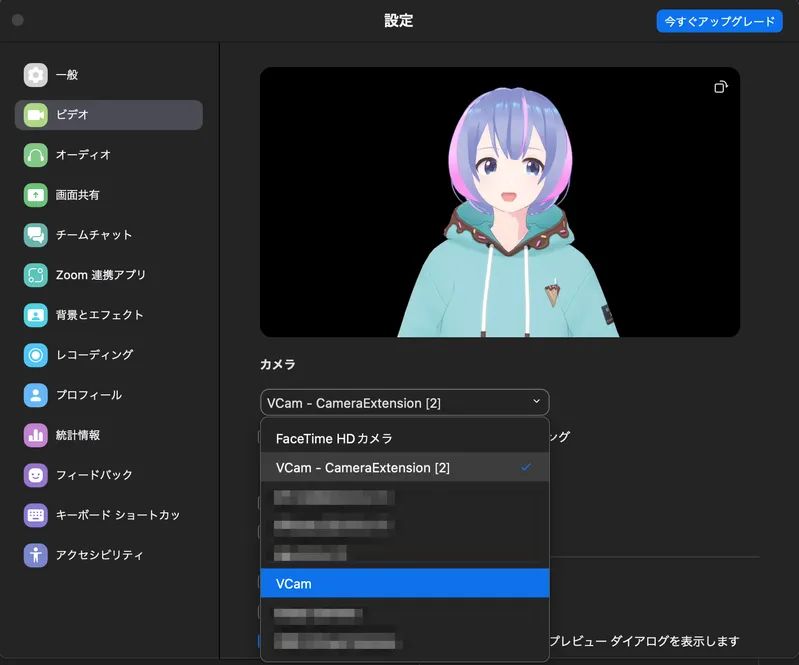
Section titled “Using the Virtual Camera”“VCam - CameraExtension [number]” appears in the camera list of apps that use a camera. Choose it to show the VCam video.
Updating the Virtual Camera
Section titled “Updating the Virtual Camera”After you update VCam, you may need to update the virtual camera. If so, click “Reinstall” in the “Virtual Camera” tab of the settings, then restart VCam.
The latest virtual camera is “VCam - CameraExtension [3]”.
Using VCam and VCam2D Together
Section titled “Using VCam and VCam2D Together”VCam and VCam2D use a virtual camera with the same name. If you install both and then uninstall one of them, the virtual camera may stop working correctly. If that happens, reinstall the virtual camera from the app you keep using.