
Integrate with OBS
You can show VCam video in OBS Studio for Mac.
Using the VCam OBS Plugin (Recommended)
Section titled “Using the VCam OBS Plugin (Recommended)”This uses fewer resources than using VCam as a video capture device.
Installation
Section titled “Installation”Download the latest .pkg file from the releases page, then open it to install the plugin. After installing it, restart OBS Studio.
How to Use
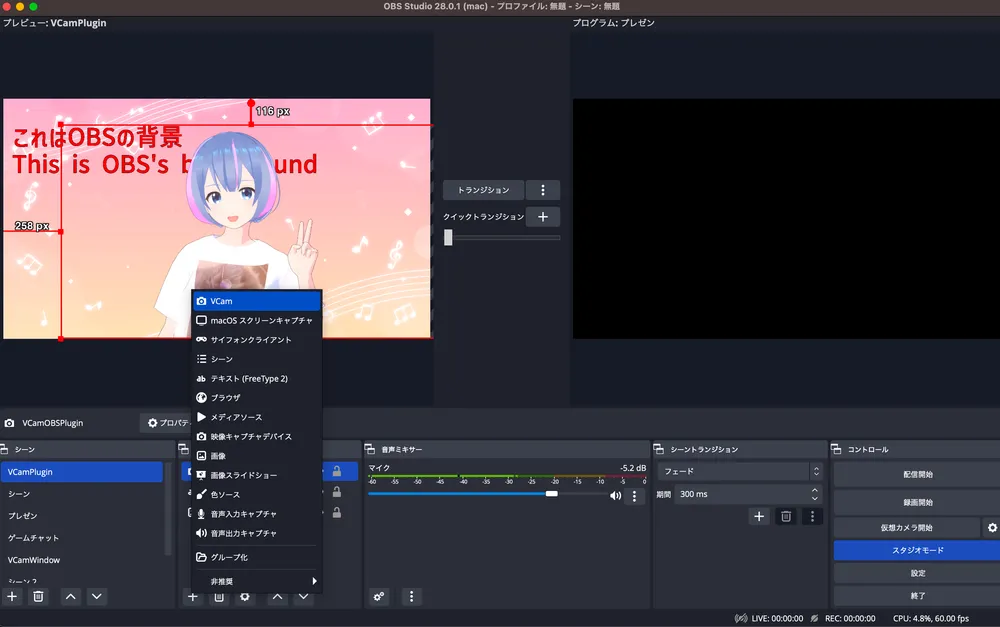
Section titled “How to Use”- In OBS Studio, click the + button under “Sources”, then choose “VCam” to add it.
- Open VCam, and its video appears in OBS Studio.
Making the Background Transparent Without Chroma Key
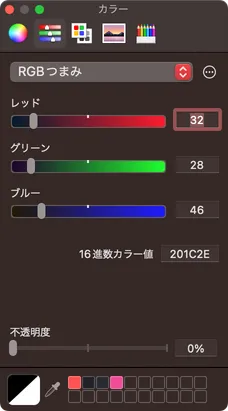
Section titled “Making the Background Transparent Without Chroma Key”Click the palette button in the toolbar, then choose a background color in “Color”.
Set the opacity to 0% to make the background transparent in OBS.
Using VCam as a Video Capture Device
Section titled “Using VCam as a Video Capture Device”-
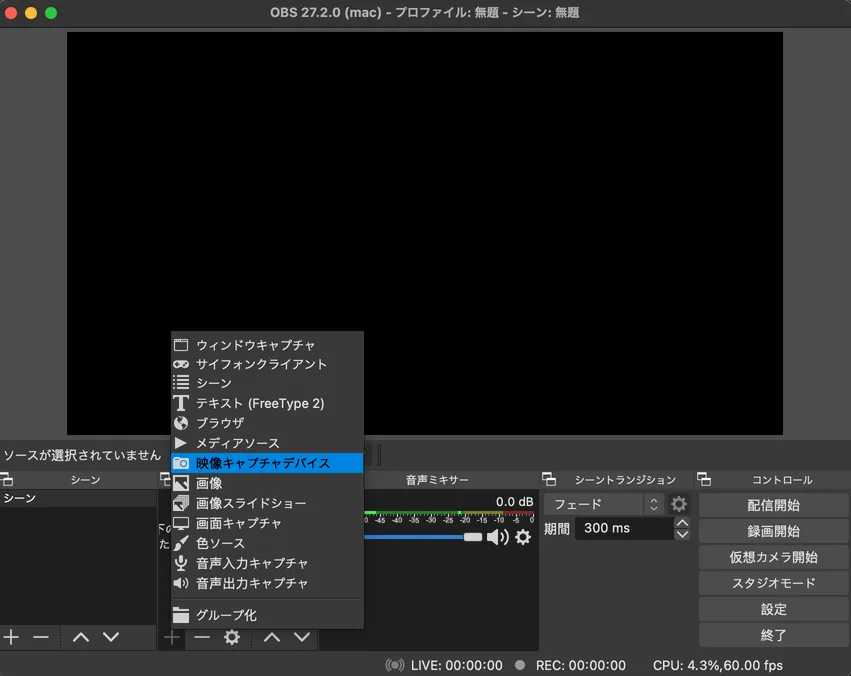
Click the + button under “Sources”, choose “Video Capture Device”, and create a new source.
-
In “Device”, choose “VCam - CameraExtension [number]”.
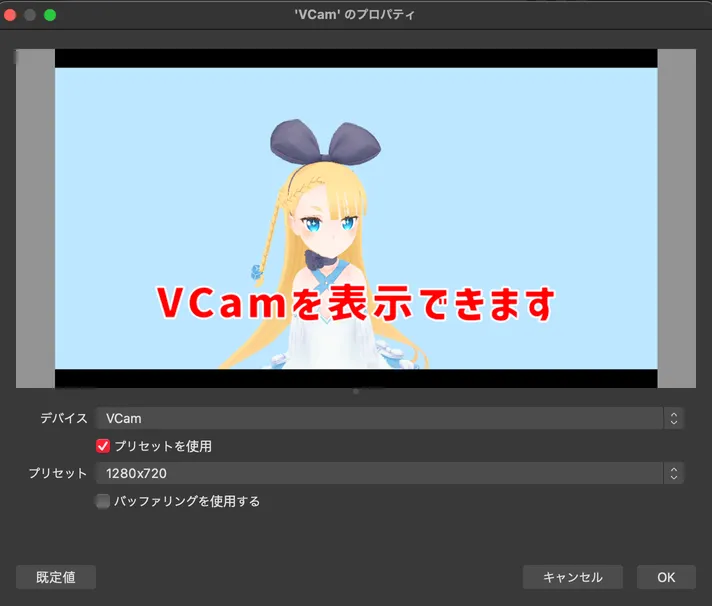
If VCam is already open, a preview appears. If you open VCam after choosing the device, choose a different device once, then choose VCam again.
-
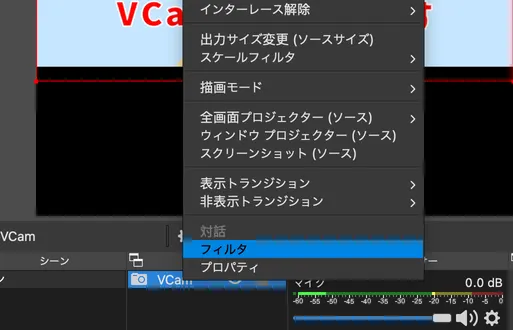
Control-click the source, then choose “Filters” from the menu.
-
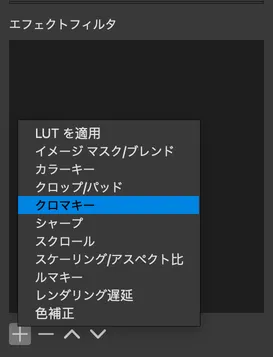
Click the + button under “Effect Filters”, then choose “Chroma Key”.
-
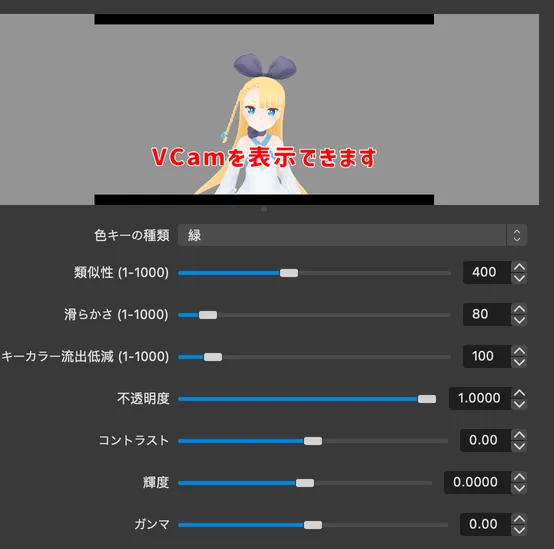
Set “Key Color” to match the VCam background color, and the background color disappears.
-
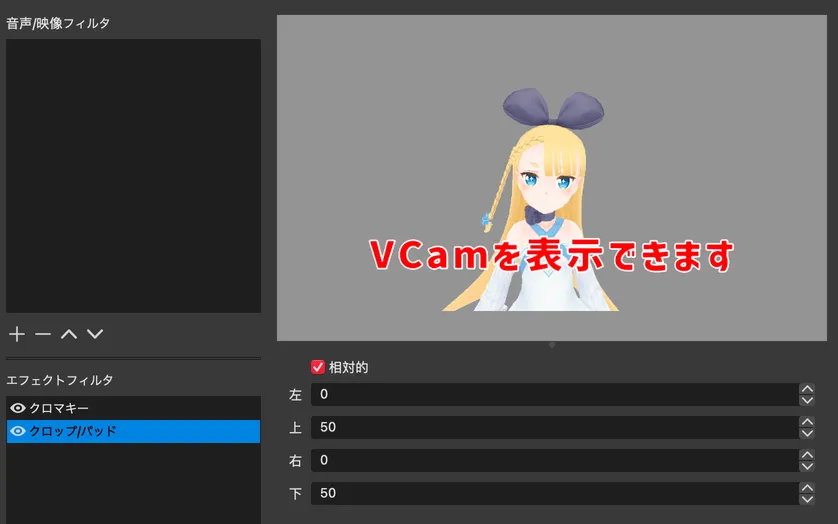
If margins appear because of the window size, add “Crop/Pad” to “Effect Filters” to remove black bars and similar margins.
Most VCam features keep working while its window is minimized, so you can minimize it when you’re not using it.