VCam Avatar Exporter
With VCam Avatar Exporter, you can export the avatar you set up for VRChat as a VRM, and use it in VCam and VCam Camera. It’s a free Unity editor extension.
What Gets Exported
Section titled “What Gets Exported”- The outfit you dressed the avatar in with Modular Avatar and other non-destructive tools
- Mouth shapes and blinks, plus Perfect Sync for avatars with ARKit shape keys
- The facial expressions you switch with hand gestures or expression menus
- Hair and clothes that sway with PhysBones
Materials are exported as MToon, so other VRM apps can show the avatar too. The lilToon settings you tuned are exported with them. The export works on a copy of the avatar, so your scene and assets stay unchanged.
Requirements
Section titled “Requirements”- An avatar with a VRChat Avatar Descriptor and a Humanoid rig
- Unity 2022.3.22f1
- VRChat Avatars SDK 3.10.0 or later
- NDMF 1.14.7 or later (earlier than 2.0)
- UniVRM 0.131.0 to 0.131.2
- lilToon 2.3.4, installed as a package or imported into Assets from a unitypackage
- VRChat Creator Companion (VCC)
Installation
Section titled “Installation”- Open the VCam Avatar Exporter listing and select “Add to VCC”. You can also add it in VCC from “Settings” > “Packages” > “Add Repository” by entering
https://vcamapp.github.io/vcam-avatar-exporter/index.json. - If you haven’t added the Modular Avatar listing, add
https://vpm.nadena.dev/vpm.jsonthe same way. - In VCC, select “Manage Project” on your avatar’s project and add “VCam Avatar Exporter”. NDMF and UniVRM are installed with it.
- If the project doesn’t have lilToon 2.3.4, install it from lilToon’s own distribution.
Exporting
Section titled “Exporting”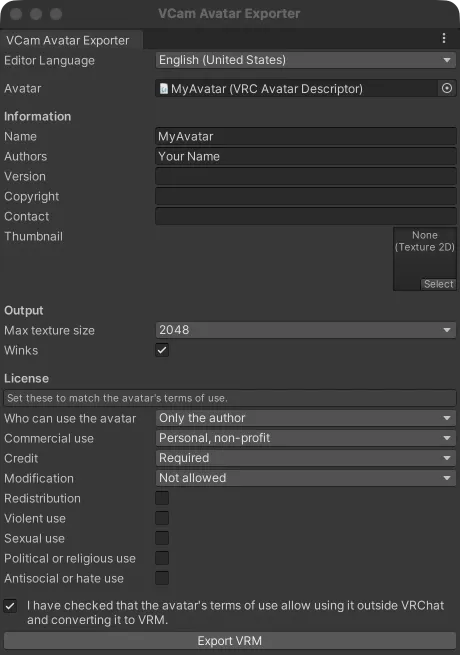
- Open your avatar’s project in Unity and choose “Tools” > “VCam Avatar Exporter” from the menu.
- Drag your avatar from the Hierarchy to “Avatar”. “Name” is filled in with the avatar’s name.
- Enter your name in “Authors”. Separate multiple authors with commas.
- Set the items under “License” to match the avatar’s terms of use. They start at the most restrictive settings.
- Check that the avatar’s terms of use allow using it outside VRChat and converting it to VRM, then select the checkbox.
- Click “Export VRM” and choose where to save the file.
To change the window’s language, use “Editor Language”. It’s the same setting that Modular Avatar and other NDMF tools use.
Output Settings
Section titled “Output Settings”- Max texture size: Larger textures are shrunk. iPhone loads every texture at its full size, so keep the default of 2048 if you use the avatar in VCam Camera.
- Winks: When the avatar closes both eyes with one shape key, splits it into one for each eye so the avatar can wink. This adds two shape keys. It’s on by default.
Checking the Result
Section titled “Checking the Result”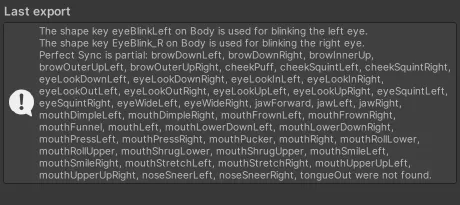
After the export, “Last export” lists what couldn’t be carried over to the VRM and the lilToon features that MToon can’t show. Shape keys that weren’t found and materials that weren’t exported are listed here too.
Common Notes
Section titled “Common Notes”- Expressions that also move bones: Expressions that also move bones, such as ears or eye highlights, are exported with their shape keys only. A VRM expression can’t move bones.
- PhysBones that overlap other PhysBones: A PhysBone on bones that another PhysBone already moves isn’t exported.
- Unsupported collider shapes: PhysBone colliders with a shape that isn’t supported aren’t exported.
- AudioLink: AudioLink has no input outside VRChat worlds. The note lists the materials that use it.
- T-pose: If the avatar can’t be put into a T-pose, it’s exported in its current pose.
- Perfect Sync: If the avatar has only some of the ARKit shape keys, Perfect Sync is exported with the ones found, and the missing ones are listed. If any of
eyeBlinkLeft,eyeBlinkRight,jawOpen, ormouthCloseis missing, Perfect Sync isn’t exported.
Loading the Avatar
Section titled “Loading the Avatar”Load the exported VRM file in VCam or VCam Camera.
- VCam: Loading an Avatar
- VCam Camera: Getting More from Avatars
If You Can’t Export
Section titled “If You Can’t Export”- An error appears at the top of the window: The version of Unity or a package isn’t supported, or a package isn’t installed. The error shows the version you need, as in “lilToon is not installed. Install lilToon 2.3.4.” Install that version. You can’t click “Export VRM” while an error is shown.
- “has no humanoid Animator” appears: Set the avatar’s rig to Humanoid.
- “Export VRM” can’t be clicked: Make sure “Avatar”, “Name”, and “Authors” are filled in and the checkbox for the terms of use is selected. It also can’t be clicked while an error is shown at the top of the window.