
Getting more from avatars
Press and hold an item in a list to see more controls.
What a long press opens
Section titled “What a long press opens”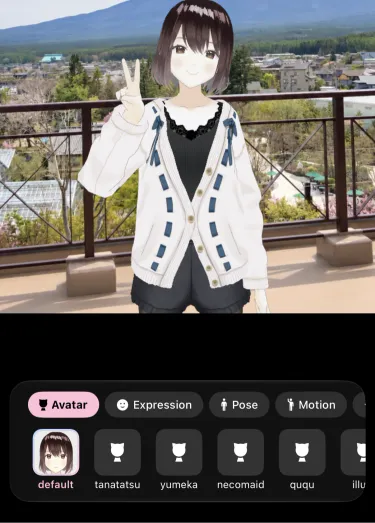
Press and hold an avatar for reorder and delete, plus size and position for an image avatar. You can also drag to reorder. Poses are deleted from the same long press.
Press and hold an accessory for “Adjust Position”, plus “Delete” for an accessory you imported.
Applying expressions and poses
Section titled “Applying expressions and poses”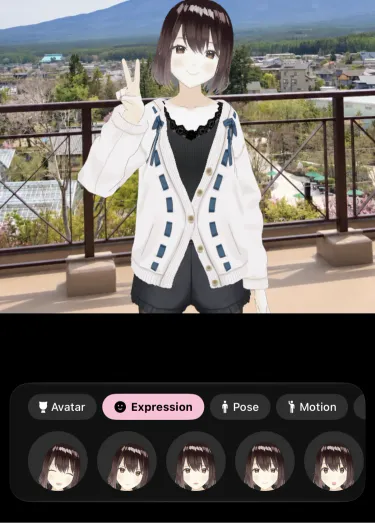
An expression is applied while you press and hold it, and a tap locks it.
Poses and motions are applied on a tap and return to normal on a second tap. Your face and hands keep following you the whole time.
Wearing accessories
Section titled “Wearing accessories”Tap an accessory to wear it and tap it again to take it off. You can wear several at once, and what you wear is saved for each avatar.
You can also import your own 3D models with “Add” at the end of the list. You can import:
- GLB and FBX files
- A zip containing a GLB, FBX or glTF model
- A folder containing a GLB, FBX or glTF model
For a model whose textures are separate files, put the textures in a zip with it or choose the folder. Choosing an FBX file on its own leaves its textures behind. Folders in Google Drive, Dropbox and similar apps can’t be chosen, so copy them to On My iPhone or iCloud Drive, or choose a zip instead.
If an imported accessory sits wrong, press and hold it, choose “Adjust Position”, and change the “Type”, position, rotation or size. While adjusting, drag on the preview to move it, pinch to resize and rotate to tilt. The placement is saved for each avatar.
Adding more avatars
Section titled “Adding more avatars”VRM models can come straight from VRoid Hub (“Add” > “Choose from VRoid Hub”). Illustrations and photos of plushies can also be imported as avatars. The background is cut out automatically. VRMs and accessories (GLB/FBX/zip) that arrive from “Open in” or AirDrop can be imported as they are.
To use an avatar you set up for VRChat, export it as a VRM with VCam Avatar Exporter.