
Camera Controls
Some of the camera controls are available as gestures.
Swipe, Pinch, and Touch and Hold
Section titled “Swipe, Pinch, and Touch and Hold”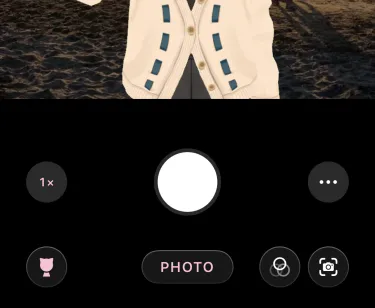
Swipe sideways to switch between “GIF”, “Video”, and “Photo”. You don’t need to tap the button below.
Pinch to zoom. In “Snap”, only the background zooms and the avatar stays the size you appear at. To zoom the avatar too, turn on “Avatar Zoom” in the menu.
Tap to set focus and brightness on that spot, and touch and hold to lock them. While the frame is showing, drag up or down to adjust the brightness. The avatar gets the same adjustment.
Shooting Settings in the Menu
Section titled “Shooting Settings in the Menu”The menu to the right of the shutter also has these settings:
- “Flash”: Keeps the back camera’s light on. It doesn’t turn on with the front camera
- “Timer”: Each tap switches between off, 3 seconds, and 10 seconds
- “Grid”: Shows guide lines for composition
- “Level”: Shows a line for the tilt of the device. When the device is level, the line joins up and changes color
- “Depth”: Blurs what’s out of focus. Choose the aperture on the dial
“Depth” appears in these cases. It doesn’t appear with the front camera in “Snap”.
- The back camera in “Snap”: On supported devices, it finds subjects such as people and pets and blurs the background
- “AR Camera”: On devices with LiDAR, it blurs what’s behind the avatar
- “Studio”: Works on every device
Palm Shutter
Section titled “Palm Shutter”Turn on “Palm Shutter” in the menu to take a shot by showing your palm from a distance. Face your palm toward the front camera and hold still until the ring fills. After a countdown, a photo is taken or a video starts recording. The countdown follows the timer and lasts 3 seconds even when the timer is off.
It appears while the front camera is tracking your hands (in “Snap” and “Studio”). It isn’t available while “Precise Face Tracking” is on. Show your palm where the front camera can see both your face and your hand.
Shooting in Landscape
Section titled “Shooting in Landscape”The screen stays upright, but when you hold the device sideways, photos and videos come out in landscape. Only the icons rotate, so you can keep shooting the way you’re holding it.
Can’t Find Your Photos
Section titled “Can’t Find Your Photos”Shooting alone doesn’t save anything to Photos. To save, tap “Save”. The “Library” you open with the button at the top left shows only what you shot in this app, and it needs full access to your photos. Tap “Allow Full Access”, and what you shoot from then on appears there.
Opening from Siri or Control Center
Section titled “Opening from Siri or Control Center”Use “Open Camera” in Siri, the Shortcuts app, or Control Center to open VCam Camera in the capture mode you choose. Use “Make a GIF” to open it ready to make a GIF.