
Integrate with iPhone Tracking Apps
You can connect VCam to apps that do high-precision face tracking with the TrueDepth camera (Face ID) on iPhone. These apps are supported:
Connecting VCam Mocap
Section titled “Connecting VCam Mocap”- In the “Integration” tab of the VCam settings, turn on “Enable” for “VCam Mocap”.
- Open VCam Mocap on your iPhone and connect it to your Mac. For the steps on iPhone, see the VCam Mocap page. When they’re connected, “Connected” appears next to the switch.
- In the “Tracking” tab, change “Face / Eye / Mouth” to “VCam Mocap”, and the tracking results appear in VCam.
In VCam, VCam Mocap can also track your hands and fingers. When you set “Hand” to “VCam Mocap”, “Finger” is also set to “VCam Mocap” and can’t be changed.
Connecting iFacialMocap
Section titled “Connecting iFacialMocap”-
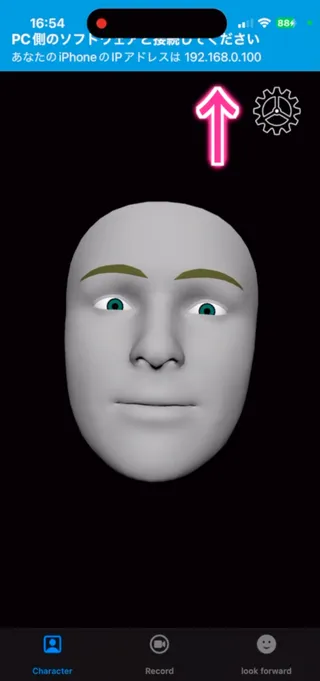
Open the iFacialMocap app and check the IP address of your iPhone.
-
In the “Integration” tab of the VCam settings, enter the IP address in the “iFacialMocap” field, then click “Connect”.
-
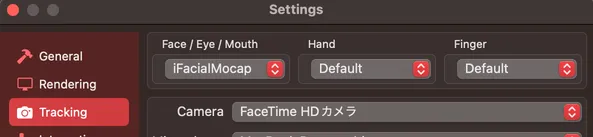
In the “Tracking” tab, change the face tracking method to “iFacialMocap”, and the tracking results appear in VCam.
Network Interpolation
Section titled “Network Interpolation”Raise “Network Interpolation” in the “Integration” tab to reduce stutter when the connection drops. The higher it is, the more the avatar’s movement lags. The added delay appears next to the slider. This setting applies to both VCam Mocap and iFacialMocap.