
Integrate with mocopi (VCam)
You can connect VCam to mocopi, the motion capture system from Sony.
https://x.com/vcamapp/status/1689123753836572672
Connecting mocopi
Section titled “Connecting mocopi”-
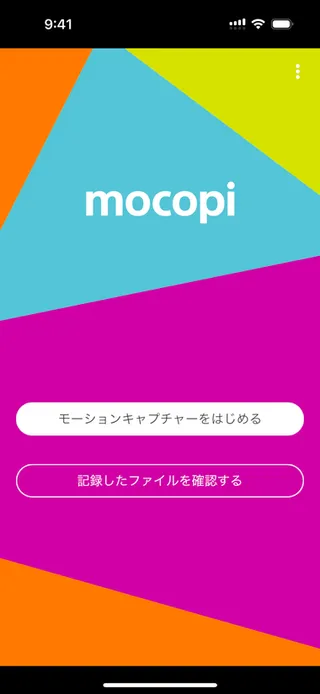
Open the mocopi app and start motion capture by following its instructions.
-
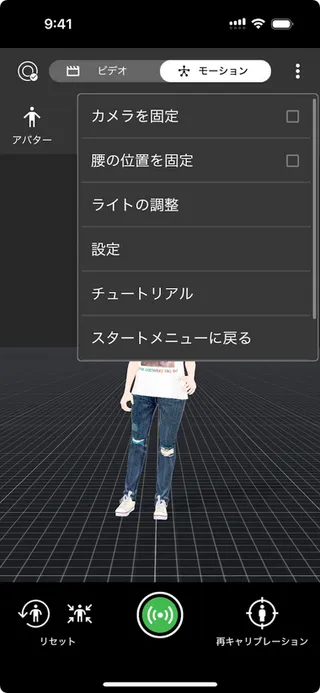
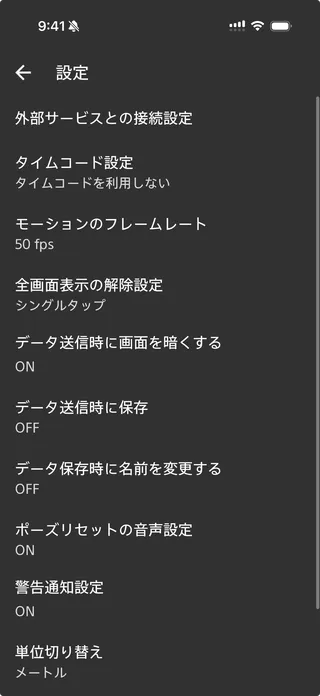
From the menu at the top right, choose “Settings” > “External service connection settings”.
-
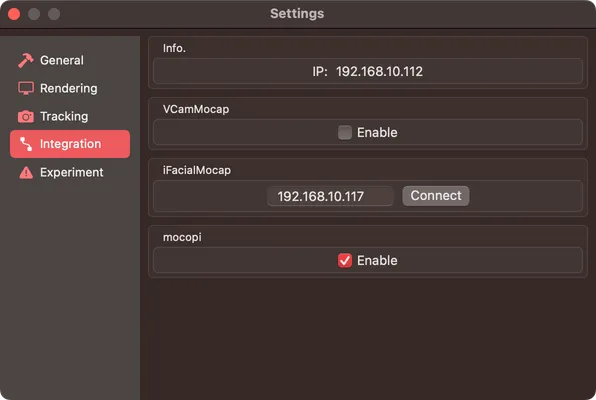
In VCam, click the ⚙️ button to open the settings, then turn on “Enable” for mocopi in the “Integration” tab.
-
In “External service connection settings” in the mocopi app, choose “Stream support app” as the destination. For “IP address”, enter the IP address shown in “Info.” on the VCam settings screen from step 3, then tap “OK”. Leave the port and the transfer format as they are in the image.
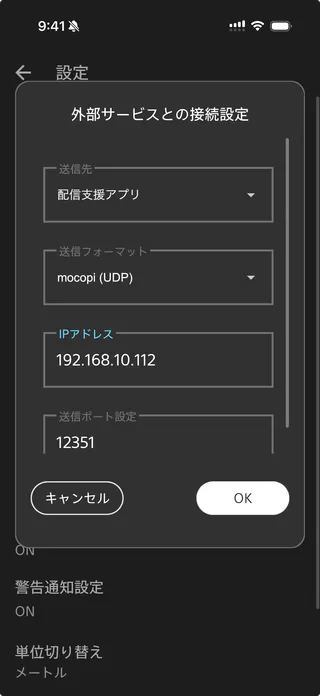
If VCam doesn’t show an IP address, check the IP address of your Mac, for example by following this guide.
-
Start motion capture with the button at the bottom center of the mocopi app, and your movement appears on the avatar in VCam.
The mocopi app keeps working in the background, so you can use VCam Mocap or iFacialMocap on the same iPhone at the same time.
Troubleshooting
Section titled “Troubleshooting”Can’t Click to Select the Avatar in VCam
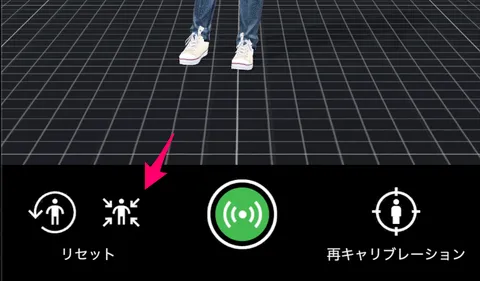
Section titled “Can’t Click to Select the Avatar in VCam”The avatar’s position may be off because of mocopi tracking. Tap this button in the mocopi app to correct the position.
The mocopi App Is Tracking, but VCam Doesn’t Follow
Section titled “The mocopi App Is Tracking, but VCam Doesn’t Follow”Check that your iPhone and Mac are on the same Wi-Fi network. Also check that security software or similar isn’t blocking port 12351.
With BVH Sender, you can check that VCam works without mocopi. Enter 127.0.0.1 as the IP address. If the motion from BVH Sender appears in VCam, the problem is most likely your network settings.
VCam Lags About a Second Behind the mocopi App
Section titled “VCam Lags About a Second Behind the mocopi App”Disconnect once in the mocopi app, then connect again.
Disconnecting from mocopi
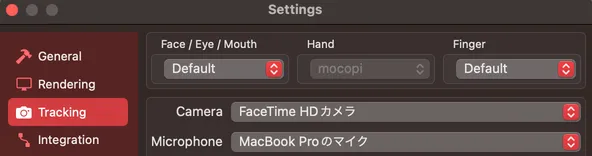
Section titled “Disconnecting from mocopi”In the “Integration” tab of the settings, turn off “Enable” for mocopi. Then choose the tracking method for each body part again in the “Tracking” tab. If you can’t choose “Hand”, check that “Enable” for mocopi is off.
Can’t Move Forward or Backward with mocopi
Section titled “Can’t Move Forward or Backward with mocopi”Only left and right movement is reflected for now. Support for forward and backward movement is planned for a future update.