
Integrate with OBS
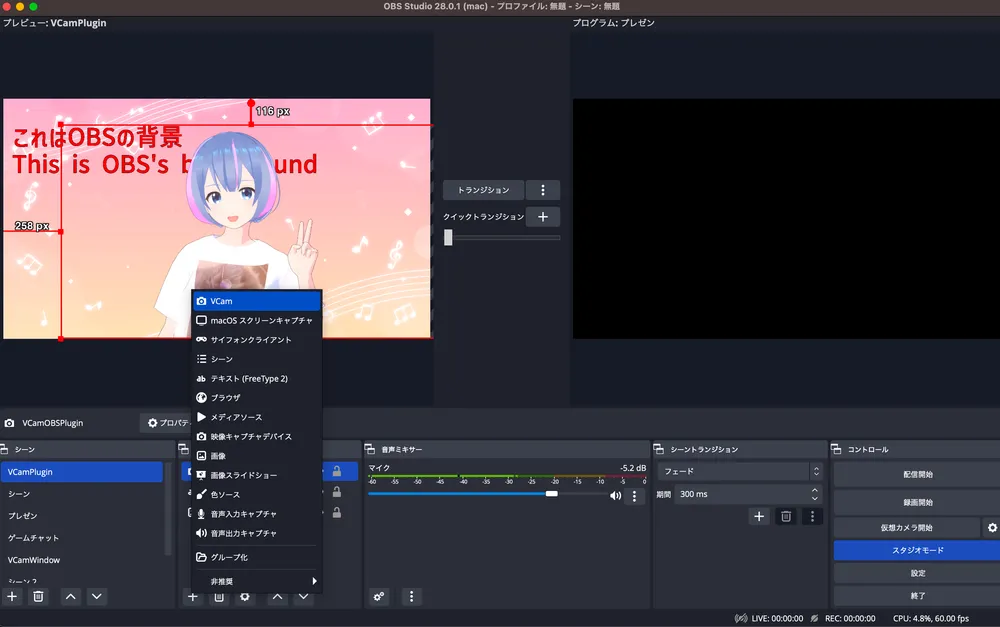
Using the VCam OBS Plugin (Recommended)
Section titled “Using the VCam OBS Plugin (Recommended)”This method reduces the load compared to other methods.
Installation
Section titled “Installation”Download the latest .pkg file from the link below and open the file to install.
After installing, please restart OBS Studio.
https://github.com/vcamapp/obs-plugin/releases
How to use
Section titled “How to use”- Click on the “+” button under OBS Studio’s sources, select “VCam” and add it to the sources.
- Open the VCam app.
- VCam’s video will now appear in OBS Studio.
Making the background transparent without chroma key
Section titled “Making the background transparent without chroma key”Choose a background color from VCam’s background selection.
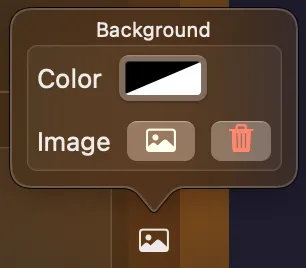
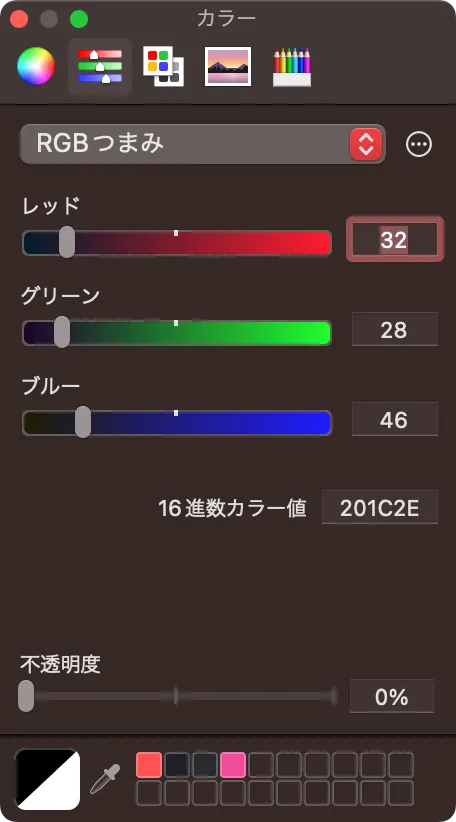
By setting the opacity to 0%, the background on OBS becomes transparent.
Using VCam as a Video Device
Section titled “Using VCam as a Video Device”- From the “Add Source” button, select “Video Capture Device” and create a new one.
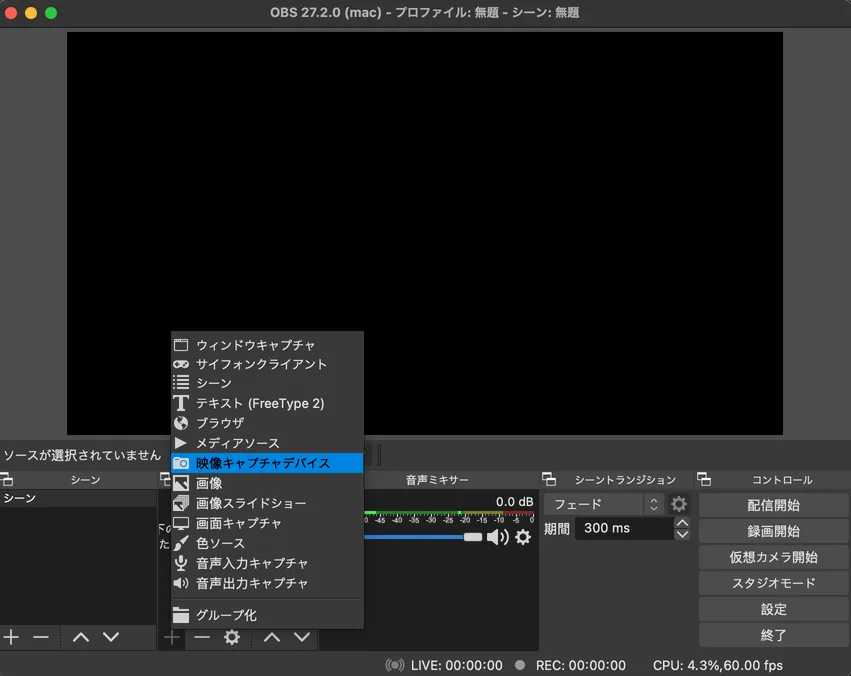
- From devices, select “VCam - CameraExtension [number]”.
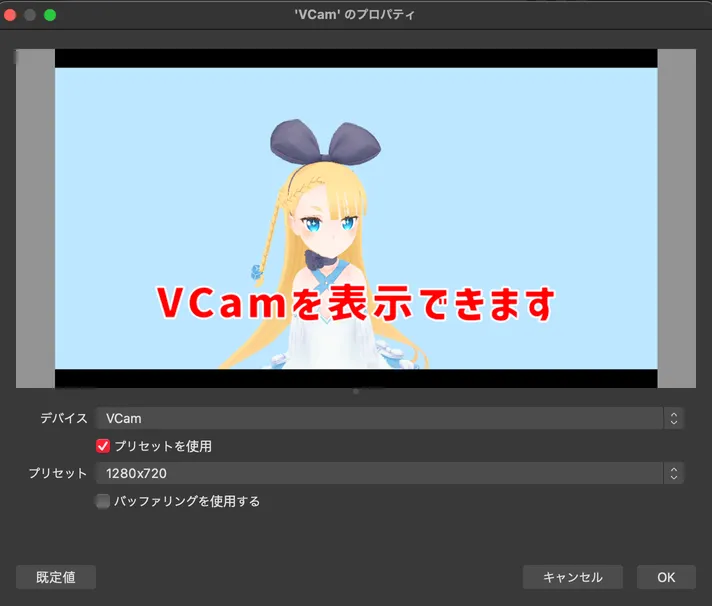
- If you have VCam opened in advance, a preview will be displayed. If you start VCam after selecting, choose another device from the device list and reselect VCam to preview.
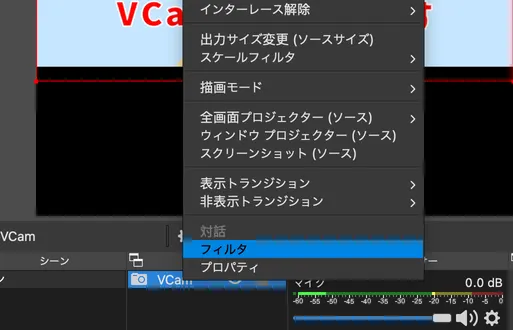
- Control-click the source, and select “Filters” from the menu.
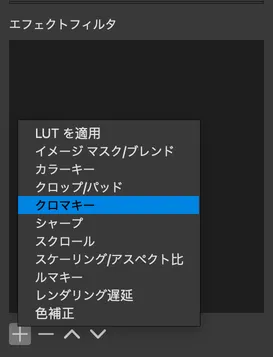
- Click on the “Add Effect Filter” button and select “Chroma Key”.
- Match the color key to VCam’s background color to remove the background.
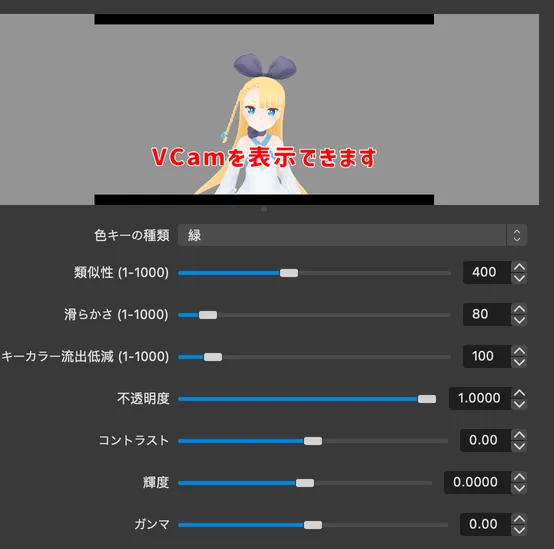
- If there are black bars (depending on the window size), you can remove them by adding “Crop/Pad” to the effect filters.
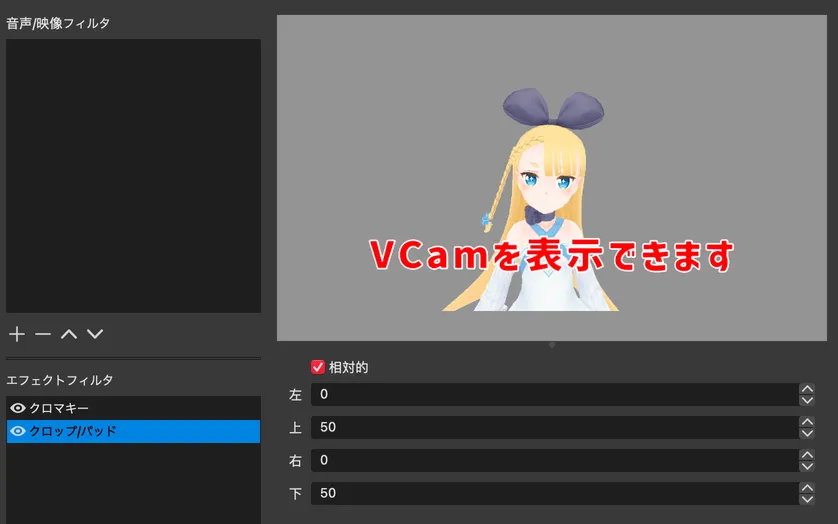
You can now freely combine avatars and game footage.
Even if you minimize the VCam app, many features will still work. If you don’t need the operation window, try minimizing it.